In this codelab, you will install Docker, set up OpenClaw (an open-source, self-hosted AI assistant) in a container, and connect it to a local Ollama model (Gemma) so you can run AI-driven research workflows entirely on your own machine — no cloud API costs required.
Author: Geeta kakrani
GDE IN AI & TPU
What you'll learn
- How to install and verify Docker Desktop on macOS (Apple Silicon)
- How to clone and run OpenClaw using Docker Compose
- How to connect OpenClaw to a local Ollama model
- How to troubleshoot common Docker/Ollama/gateway authentication issues
- How to test your setup with a real research query
Prerequisites
- A Mac with Apple Silicon (M1/M2/M3)
- Admin access to install software
- At least 10–15 GB of free disk space
- Basic comfort using Terminal
Positive : Docker is optional for OpenClaw in general, but this codelab uses the containerized setup so you get an isolated, easy-to-clean-up environment.
- Open your browser and go to docker.com/products/docker-desktop
- Click Download for Mac – Apple Silicon (important: not the Intel version)
-
Open the downloaded
.dmgfile and drag the Docker icon into your Applications folder - Open Docker Desktop from Applications. Approve any system permission prompts with your Mac password
- Accept the terms of service. You can skip creating a Docker account for local use
Verify the install
Open Terminal and run:
docker --version
docker run hello-world
If you see Hello from Docker!, your installation is
working.
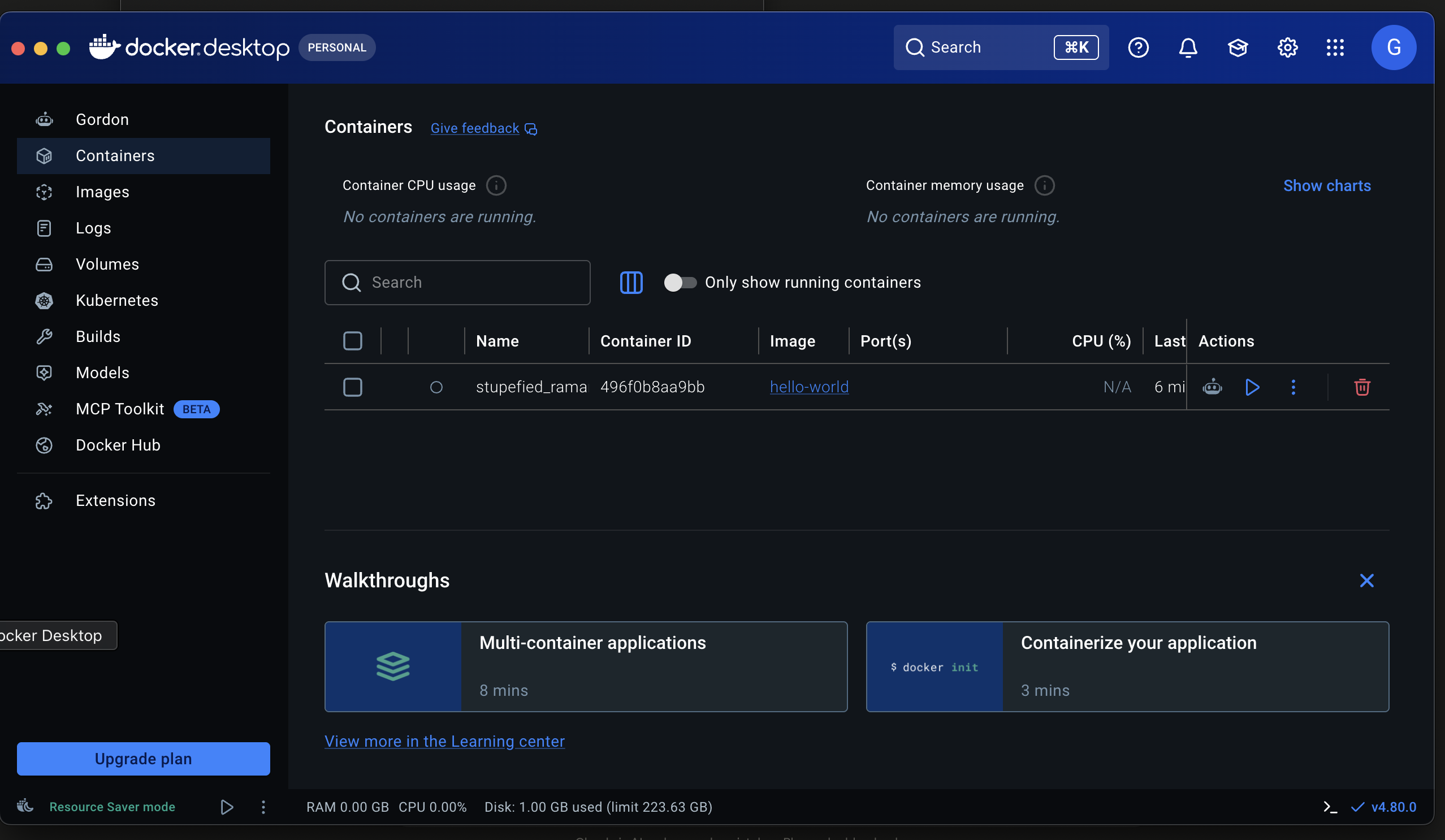
Negative : If a popup says "Terminal would like to access data from other apps", click Allow — this is a normal macOS permission prompt for the Docker credential helper.
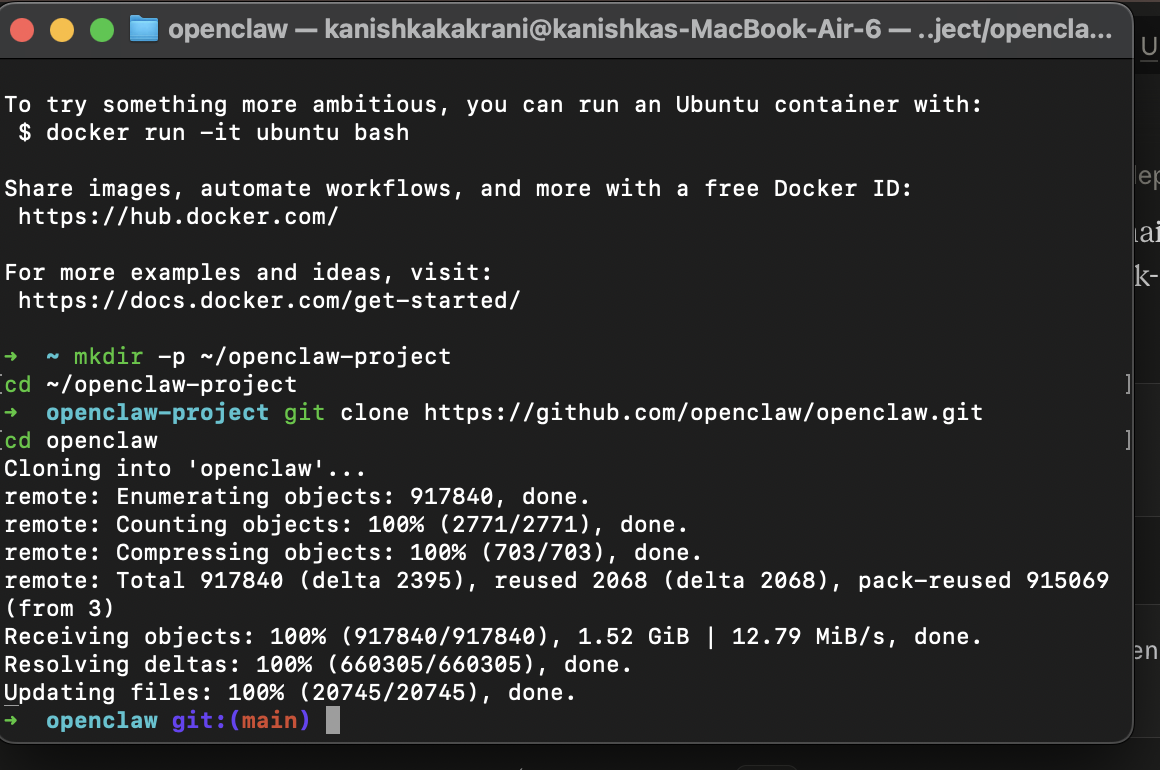
mkdir -p ~/openclaw-project
cd ~/openclaw-project
git clone https://github.com/openclaw/openclaw.git
cd openclaw
Negative : If git isn't installed yet, macOS will
prompt to install Command Line Developer Tools. Click
Install, wait a few minutes, then re-run the clone
command.
- Download Ollama from ollama.com/download if not already installed
- Pull the Gemma model you want to use:
ollama pull gemma3
- Verify it downloaded:
ollama list
- Confirm Ollama is reachable on your host:
curl http://127.0.0.1:11434
You should see Ollama is running.
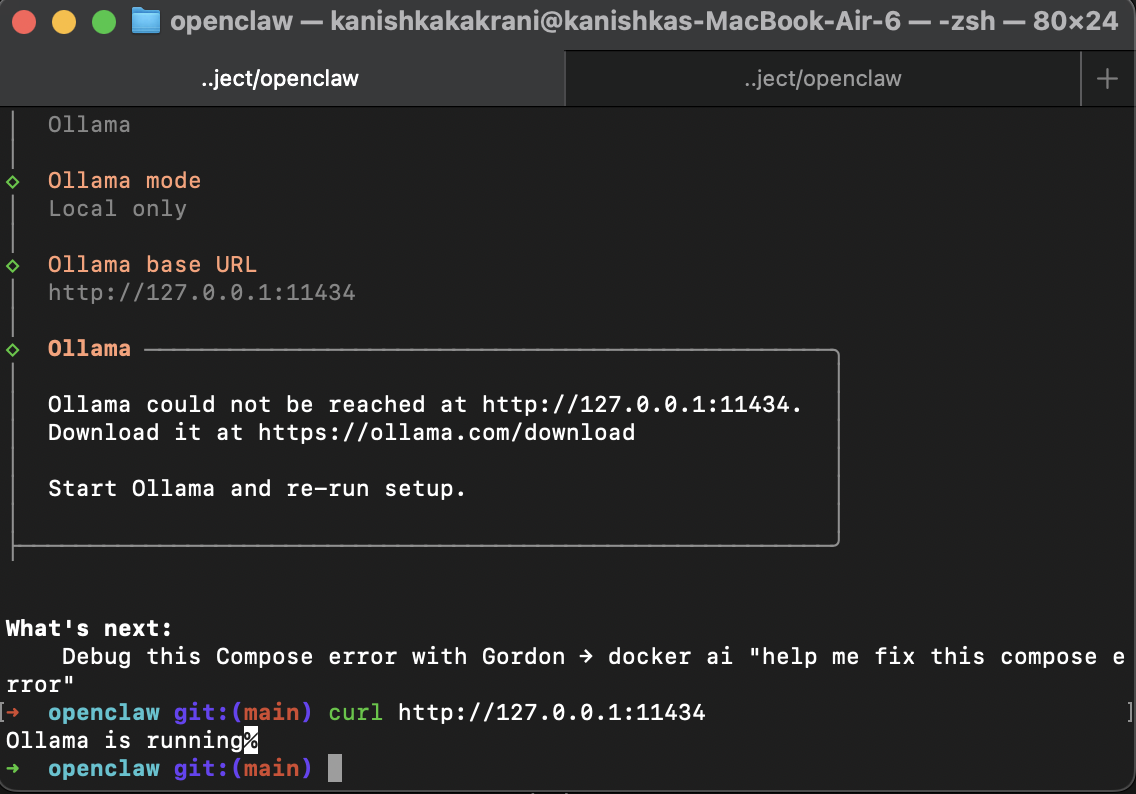
Positive : If ollama serve gives an "address already
in use" error, that's fine — it means Ollama is already
running in the background.
From inside the openclaw folder:
export OPENCLAW_IMAGE="ghcr.io/openclaw/openclaw:latest"
./scripts/docker/setup.sh
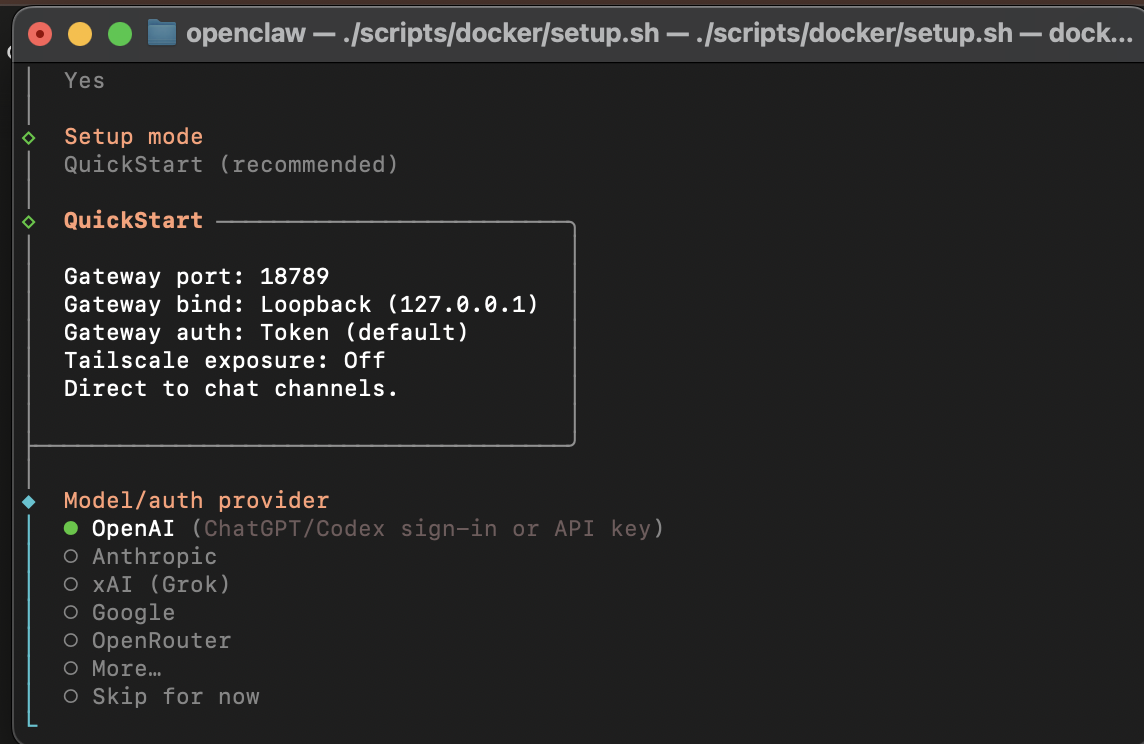
Walk through the interactive wizard:
Prompt |
Selection |
|
Personal-by-default disclaimer |
Yes |
Setup mode |
QuickStart (recommended) |
Model/auth provider |
Skip for now (we'll configure Ollama separately) |
Default model |
Keep current |
Select channel |
None / Skip |
Search provider |
Skip for now |
Configure skills now? |
No |
Enable hooks? |
Skip for now |
The script will build/pull the image and start the container.
Verify the container is running
docker compose ps
You should see openclaw-openclaw-gateway-1 with status
Up ... (healthy).
Containers can't reach your Mac via 127.0.0.1 — that
address means the container itself inside Docker. Use
Docker's special hostname instead:
http://host.docker.internal:11434
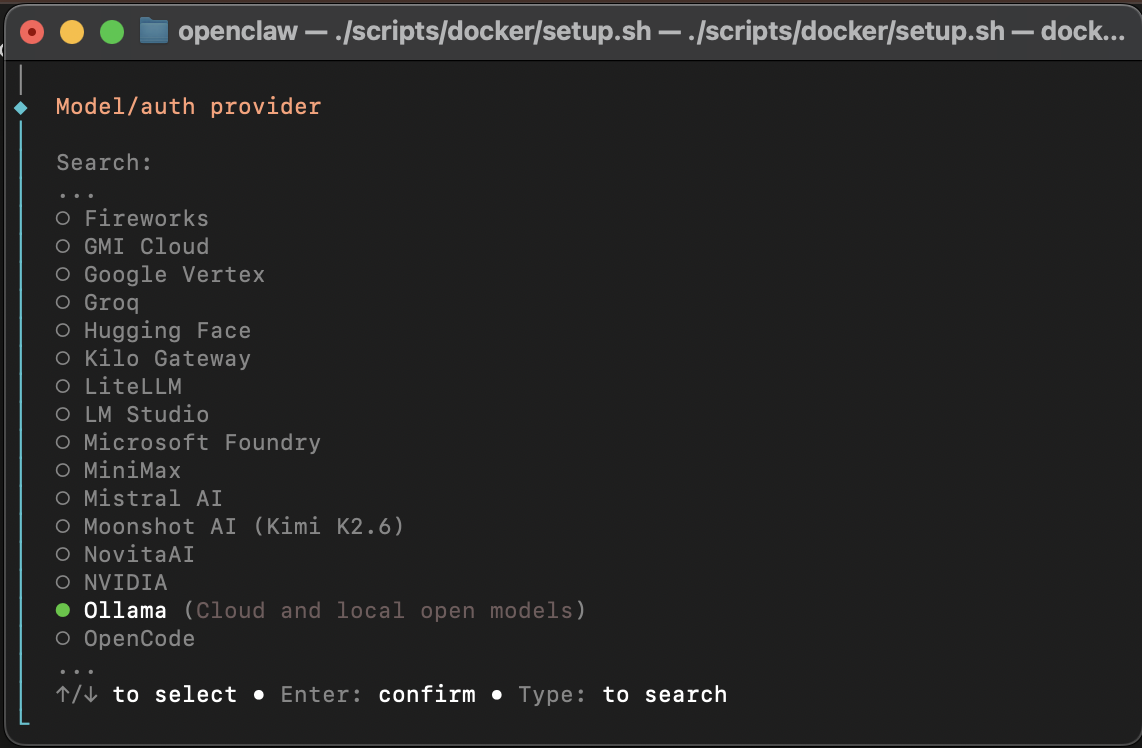
Run the interactive configure wizard to set this correctly:
docker compose run --rm -it openclaw-cli configure
In the wizard:
- Where will the Gateway run? → Local (this machine)
- What do you want to configure? → Model
- Search/select Ollama
- Ollama auth method → Ollama
- Ollama mode → Local only
-
Ollama base URL → clear the default and type:
http://host.docker.internal:11434 -
Pick your model (e.g.
gemma3orgemma4:e4b) from the picker - Select Done to exit the wizard
Provide the required Ollama auth key
Ollama's local API needs a placeholder API key to be registered as a provider (any value works — it's not a real secret):
echo 'OLLAMA_API_KEY=ollama' >> .env
docker compose up -d --force-recreate openclaw-gateway
Verify the variable made it into the container:
docker compose exec openclaw-gateway env | grep OLLAMA
Get your gateway token:
cat .env | grep TOKEN
Open in your browser, replacing the token placeholder with your actual value:
http://127.0.0.1:18789/?token=YOUR_TOKEN_HERE
Negative : Keep your gateway token private. It grants full control of your OpenClaw instance. Never paste it into chat, screen-share, or share it with anyone — including AI assistants helping you debug.
If you see "Auth did not match"
This usually means a stale token. Fetch a fresh one:
docker compose run --rm openclaw-cli dashboard --no-open
If the token still doesn't work after recreating the container, check whether an old value is cached in your shell session:
echo $OPENCLAW_GATEWAY_TOKEN
unset OPENCLAW_GATEWAY_TOKEN
docker compose up -d --force-recreate openclaw-gateway
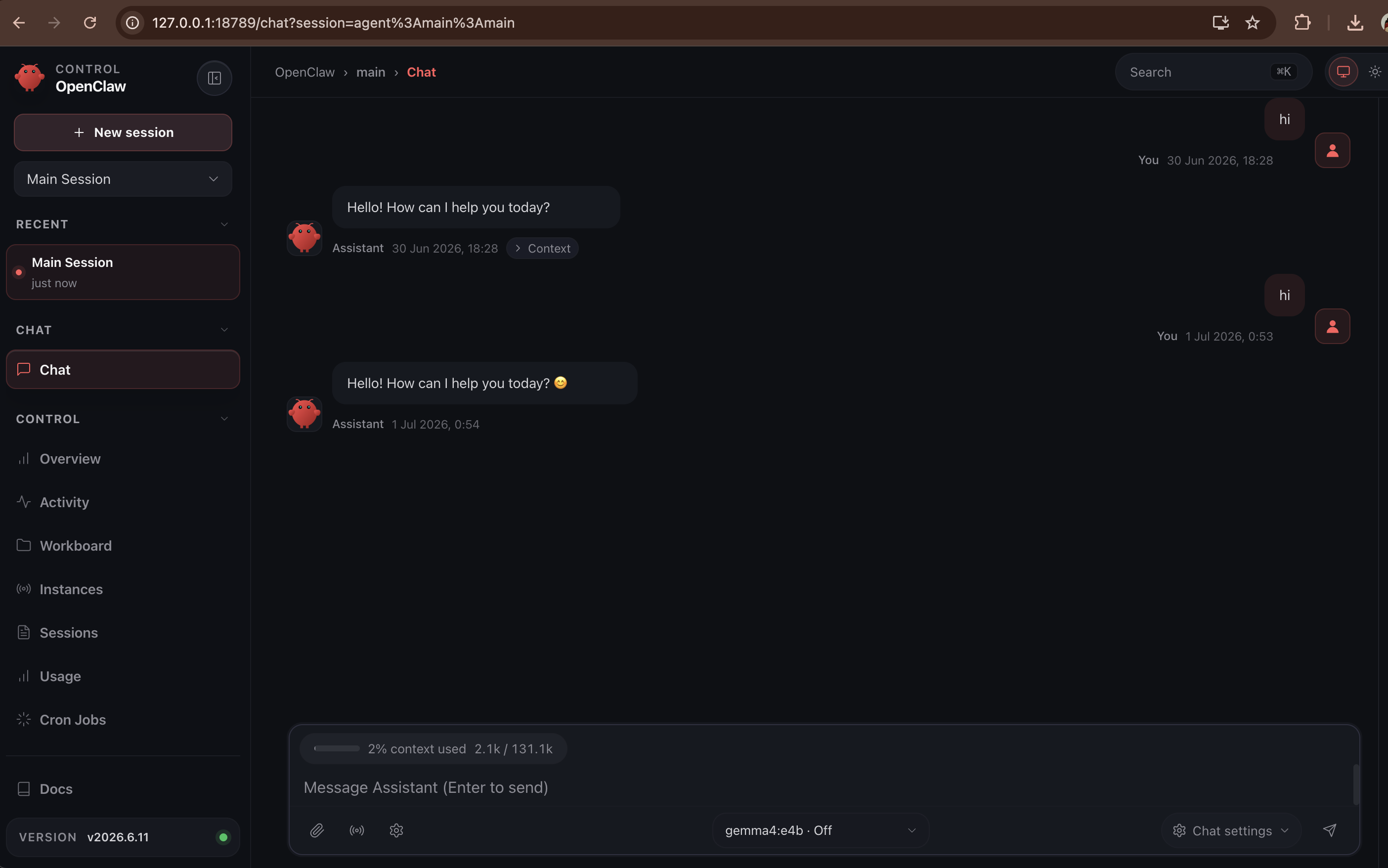
In the Control UI chat, confirm the active model and provider:
/models
Switch to your local model if needed:
/model ollama/gemma3
Send a test message:
hi
You should get a response generated entirely by your local Gemma model — no external API calls, no cost.
Try a real research workflow
Find and summarize 3 recent approaches to AI-driven research workflows, with sources.
Observe how the agent breaks the task into steps, gathers information, and structures its output — this is the core capability worth demonstrating live.
Symptom |
Likely cause |
Fix |
|
|
Wizard used container-local address |
Manually enter |
|
|
Missing Ollama API key |
Add |
|
|
Stale or mismatched token |
Regenerate token via |
Mac becomes slow/hangs |
Disk nearly full from Docker images + Ollama models |
Run |
|
|
Docker Desktop didn't auto-start |
Run |
You now have a fully self-hosted AI research assistant running locally — OpenClaw orchestrating a local Gemma model via Ollama, all inside an isolated Docker container with no cloud dependency or per-query cost.
What you learned
- Installing and verifying Docker on Apple Silicon
- Running OpenClaw via Docker Compose
- Correctly networking a container to a host-local Ollama instance
- Diagnosing gateway authentication and disk-space issues
- Validating an end-to-end local AI workflow
Next steps
-
Explore
openclaw configure --section webto enable web search tools -
Try different local models (
gemma3:1bfor speed,gemma4:e4bfor quality) - Review docs.openclaw.ai for channel integrations and automation hooks